
For contractors
3 minTrack W-9s and contractor licenses
Keep W-9 and contractor license records next to each subcontractor's COI, including review status and license expiry.
Anyone on the team
- 1
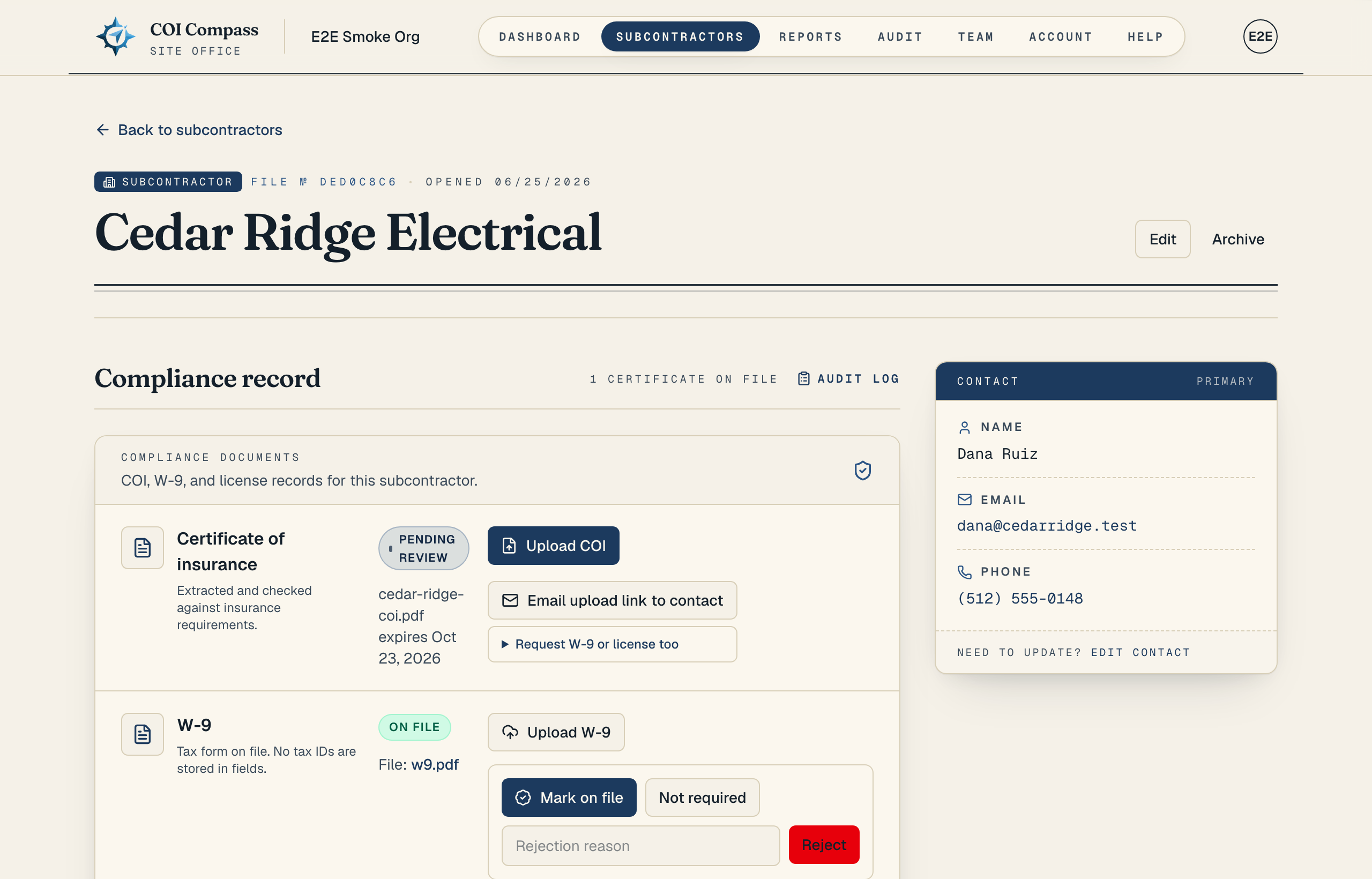
1.Open the compliance documents card
Open a subcontractor detail page and find "Compliance record". The "Compliance documents" card includes "Certificate of insurance", "W-9", and "Contractor license".
Each credential row has its own status, upload button, file link when available, and review actions after a record exists.
- 2
2.Upload a W-9
Click "Upload W-9". The upload form shows "W-9 file (required)" and accepts a PDF, JPG, JPEG, or PNG.
Click "Save for review". The row moves to "Pending review" until your team marks it on file, rejects it, or marks it not required.
- 3
3.Upload a contractor license
Click "Upload Contractor license". You can attach a "Contractor license file" and add license details.
The license fields are "State", "License number", "License type", and "Expires". If you do not attach a file, add at least one license detail. Otherwise COI Compass shows "Upload a license file or add license details."
- 4
4.Review the credential
After a W-9 or license is uploaded, use "Mark on file" to approve it, "Not required" when you do not need that document, or "Reject" when the upload is not acceptable.
If you reject a credential, use the "Rejection reason" field so the reason is stored with the record. After review, the page can show "Credential record updated."
- 5
5.Understand statuses and request documents
Credential statuses are "Missing", "Pending review", "On file", "Expired", "Rejected", and "Not required". Licenses become "Expired" when the saved "Expires" date has passed.
A subcontractor can also send W-9 and license documents through the upload link. On the detail page, open "Request W-9 or license too", select "W-9" or "Contractor license", and click "Review selected request". Check the recipient and message, then confirm the send.
The standard request button says "Request COI". It needs a contact email on the subcontractor record.
Common questions
Can I track a license without uploading a file?
Yes. For "Contractor license", you can save license details without a file as long as at least one detail is entered.
Can the subcontractor upload these documents themselves?
Yes. Send an upload link and include "W-9" or "Contractor license" under "Request W-9 or license too". The subcontractor can upload the requested documents from that link.