
For contractors
2 minEmail a subcontractor a secure upload link
Send a subcontractor a secure link so they can upload a COI, W-9, or license without creating an account.
Anyone on the team
- 1
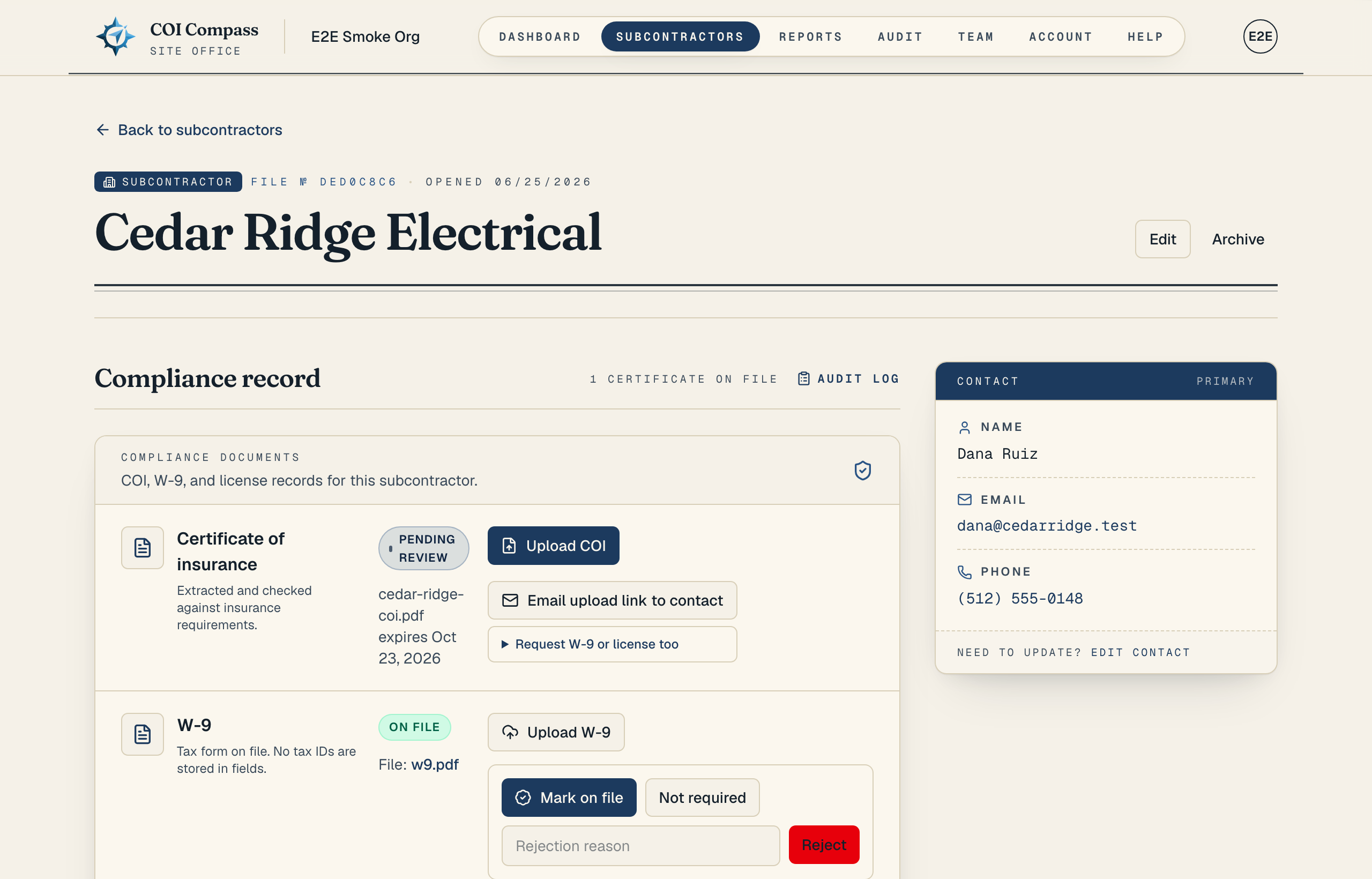
1.Confirm the contact email
Open the subcontractor record and check the Contact panel. The request button needs a contact email before it can send anything.
If the subcontractor does not have an email on file, COI Compass shows "Add a contact email above to enable this." Edit the contact first, then return to the request controls.
- 2
2.Send the COI upload link
Click "Request COI". A confirmation window shows the recipient, requested document, and email message. Check them, then click "Confirm and send request". Use "Cancel" to close the window without sending.
After you confirm, COI Compass creates a secure upload link and emails it to the subcontractor's contact email. The page then shows "Sent to" followed by the email address.
- 3
3.Request W-9 or license too
Open "Request W-9 or license too" when you want more than a COI. Choose from "COI", "W-9", and "Contractor license", then click "Review selected request". Check the recipient and message before you confirm.
The email tells the subcontractor which documents are needed and includes one secure upload link.
- 4
4.Wait for the upload notification
The subcontractor receives an email with an "Upload documents" button. The link opens the secure upload portal, does not require a COI Compass account, and expires in 14 days.
When they submit a COI, COI Compass emails your workspace that a new certificate is ready for review.
Common questions
Can I send a request without a contact email?
No. Add the subcontractor's contact email first. COI Compass disables the request action until an email is on the record.
What happens after the subcontractor uploads?
COI Compass reads the COI, saves it to the subcontractor, and sends your team a notification with a link to review the certificate.