
For contractors
3 minSmart upload: let COI Compass match the certificate
Upload a COI before choosing a subcontractor and let COI Compass match it from the named insured.
Anyone on the team
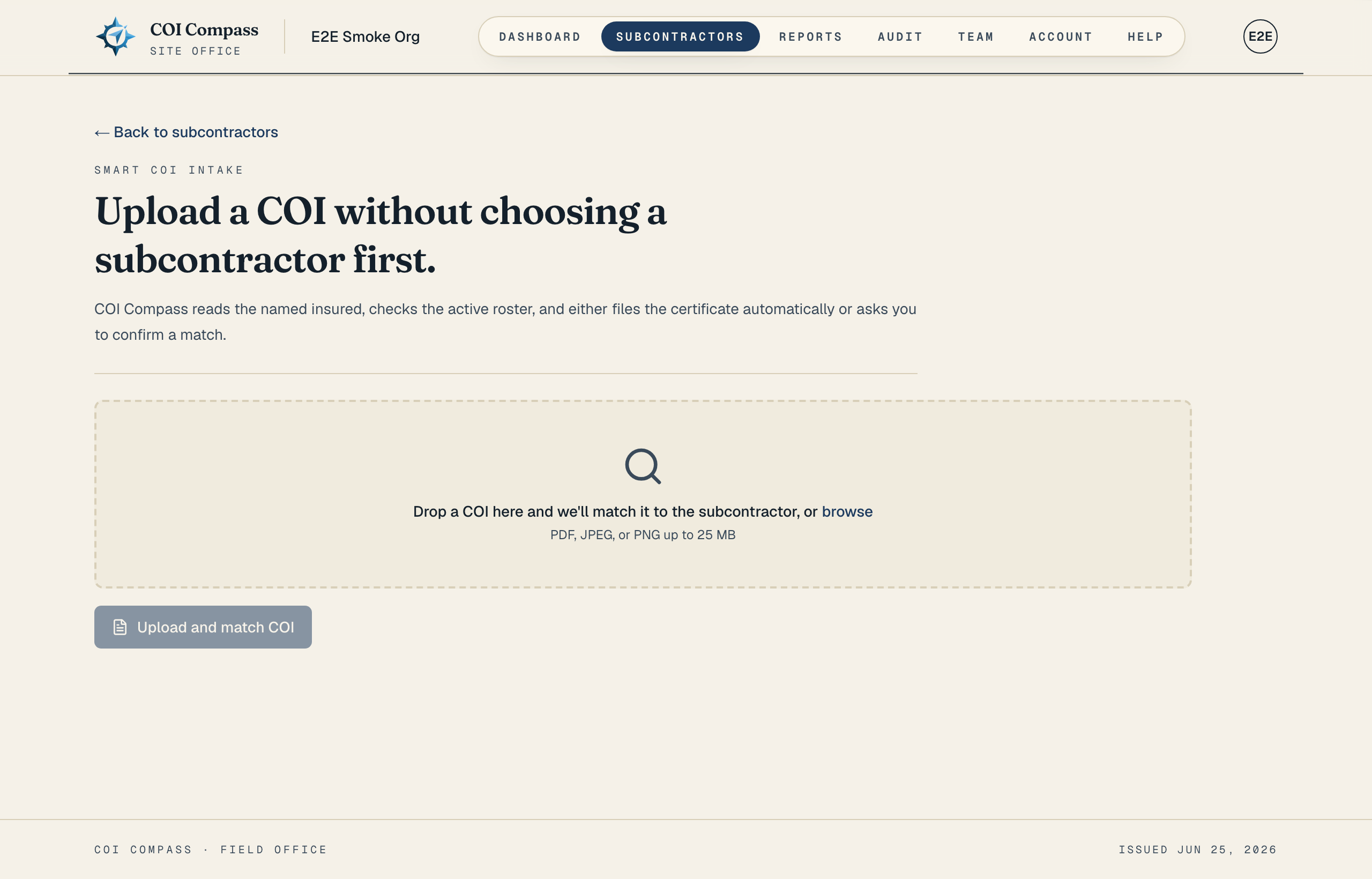
- 1
1.Open smart intake
Open the smart upload page. The page is labeled "Smart COI intake" and explains that you can upload a COI without choosing a subcontractor first.
This flow reads the named insured, compares it with your active roster, and decides whether it can file the certificate automatically.
- 2
2.Drop the certificate
Drop the file in the upload zone, or click "browse". The same file rule applies here: "PDF, JPEG, or PNG up to 25 MB".
Click "Upload and match COI". While the file is being read, the button changes to "Reading COI...".
- 3
3.Confirm or attach the match
If COI Compass finds a confident match, it attaches the certificate and sends you to the COI review screen. If it needs a person to confirm, you see the extracted "Named insured" and a "Possible matches" list.
Choose the correct subcontractor and click "Attach".
- 4
4.Create a subcontractor if needed
If no active subcontractor matches, use "Create subcontractor from COI". COI Compass prefills "Company name" from the certificate when it can, and you can add "Contact name", "Contact email", and "Contact phone".
Click "Create and review COI" to add the roster record, attach the certificate, and continue to the normal review screen.
Common questions
Will smart upload ever skip the match screen?
Yes. When COI Compass is confident that the named insured matches one active subcontractor, it files the COI automatically and opens the review screen.
Should I use smart upload if I already know the subcontractor?
You can, but the subcontractor upload path is faster. Use smart upload when you have a certificate first and want COI Compass to decide where it belongs.