
For contractors
5 minReview and approve a certificate
Compare the COI preview, extracted fields, and requirement check before approving the certificate.
Anyone on the team
- 1
1.Check the document preview
The left side of "Review COI" shows the uploaded certificate. For PDFs, COI Compass renders a preview in the page. For images, it shows the image directly.
Use "Open in new tab" when you need more room to inspect the source file.
- 2
2.Read the requirement check
The "Requirement check" panel compares the COI against the company default requirements or that subcontractor's override. It shows one of three statuses: "Pass", "Needs review", or "Fail".
When there are issues, the panel lists them under "Fail" or "Needs review" so you know what to confirm before approving.
COI Compass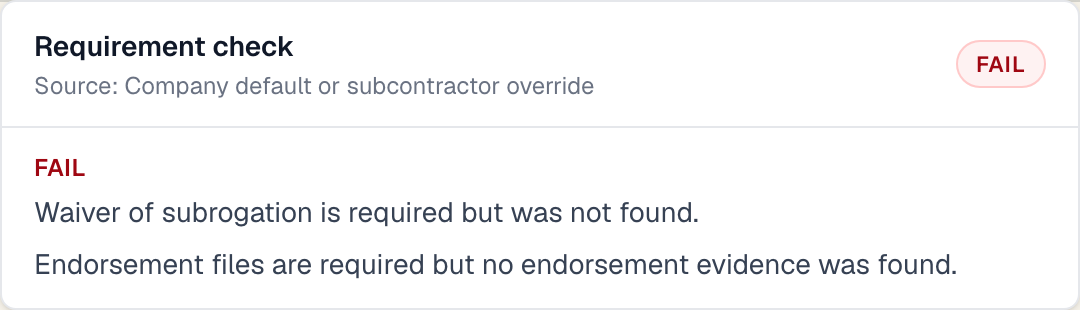
Requirement issues are grouped so failed rules are easy to separate from items that need human review. - 3
3.Review the extracted fields
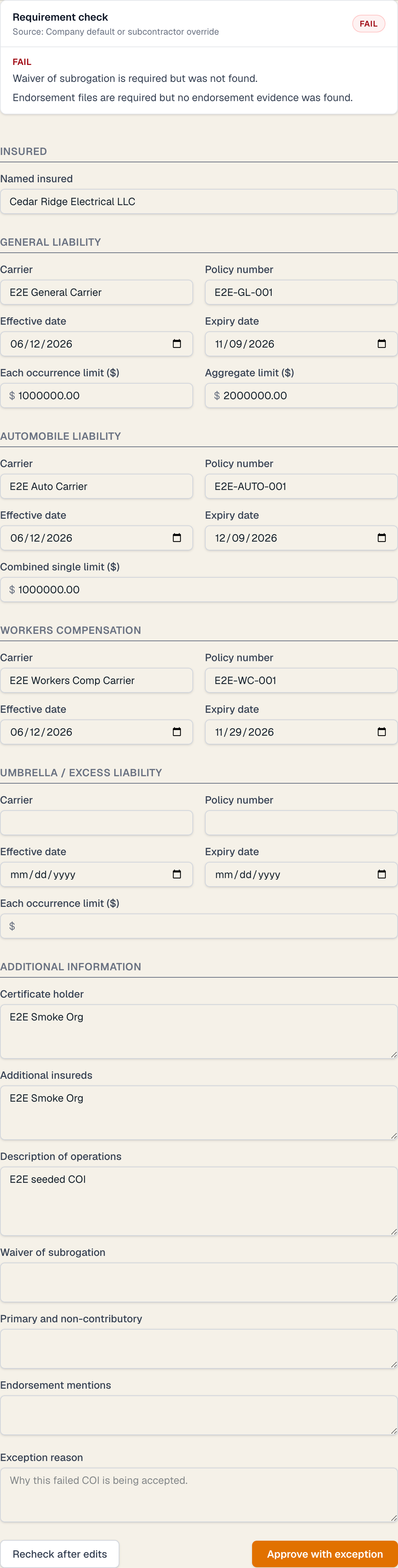
Work down the field grid. It starts with "Named insured", then groups policy fields under "General Liability", "Automobile Liability", "Workers Compensation", and "Umbrella / Excess Liability".
The "Additional information" section includes "Certificate holder", "Additional insureds", "Description of operations", "Waiver of subrogation", "Primary and non-contributory", and "Endorsement mentions".
- 4
4.Double-check lower confidence fields
Most fields have no flag when extraction confidence is high. If a field shows "Medium confidence" or "Low confidence", compare it against the preview and edit it if needed.
After making changes, click "Recheck after edits". The button changes to "Checking…" and the page returns with "Requirement check refreshed."
- 5
5.Approve the COI
If the requirement check passes or only needs review, click "Approve". If the requirement check fails and you still need to accept the certificate, fill in "Exception reason" and click "Approve with exception".
A failed COI cannot be approved without an exception reason. The field placeholder says "Why this failed COI is being accepted."
Common questions
Can I correct fields before approving?
Yes. Edit the extracted fields directly on the review screen, then click "Recheck after edits" so the requirement result reflects your changes.
What does Needs review mean?
Needs review means COI Compass found something that may be acceptable but needs human judgment, such as wording evidence. Read the issue, confirm it against the document, and approve when you are comfortable.