
For contractors
3 minReject a certificate and request a corrected one
Select the failed requirements, choose a recipient, send a tracked correction request, and follow the replacement through recheck.
Anyone on the team
- 1
1.Confirm the failed requirements
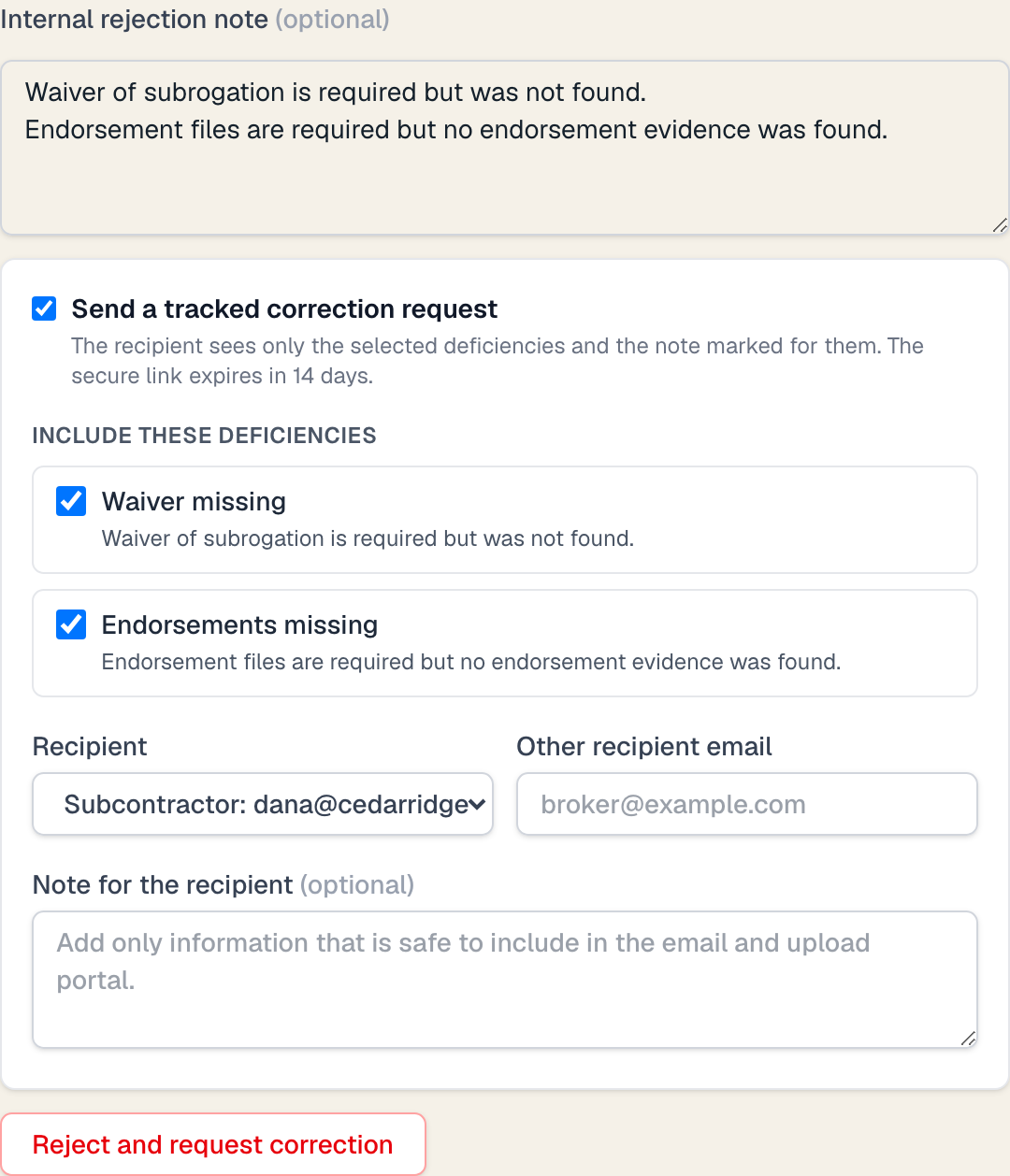
Review the "Requirement check" panel before rejecting the certificate. The correction section lists every persisted failure and review item from that check.
Select each deficiency the recipient must fix. Failed items are selected by default. Clear anything that should remain internal or does not belong in this request.
- 2
2.Choose who receives the request
Use "Recipient" to send the correction to the subcontractor contact, if one is on file, or to another email address you type. The producer address extracted from the certificate is unverified. It is never preselected. Choose it only if you intend to use that extracted address.
When no trusted contact is on file, the form defaults to "Another email address" and you must type a recipient. COI Compass validates the selected address before changing the review state. It does not silently fall back to a different contact.
- 3
3.Add a recipient-safe note
Use "Note for the recipient" for instructions that are safe to include in the email and secure upload portal. This note is separate from the internal rejection note.
The email includes only the selected plain-language deficiencies, safe required or current values, this recipient note, and the scoped upload link. Raw certificate text and internal notes are not included.
- 4
4.Reject and request correction
Click "Reject and request correction". COI Compass first saves the rejection and requirement result, then creates the tracked correction request and sends a fresh secure link that expires in 14 days.
If delivery fails, the rejection stays saved. The review and dashboard show the failure and a "Retry correction email" or "Resend correction" action.
- 5
5.Track the response and resolution
The correction tracks delivery, portal view, replacement upload, automatic requirement recheck, resolution, escalation, and approval with exception. Follow-up messages stop when a replacement arrives.
A passing replacement resolves the correction. If the replacement still fails, the updated result stays visible for another review decision. An authorized exception closes follow-up but remains in reports and the audit log.
Common questions
Can I reject without emailing anyone?
Yes. Clear "Send a tracked correction request" before submitting. The rejection and internal note are still recorded.
What if the correction email fails?
The persisted rejection and compliance check are not rolled back. Retry from the failed review or use Resend correction from the dashboard.
What does the recipient see?
Only the selected deficiency descriptions, safe required or current values, the note marked for the recipient, and the secure replacement link. Internal notes and raw document text stay private.