
For contractors
7 minRun COI renewal campaigns
Choose renewal milestones, set escalation rules, track responses, and control each subcontractor's campaign.
Organization owners configure automation; team members can manage active campaigns
- 1
1.Open Renewal campaigns on Account
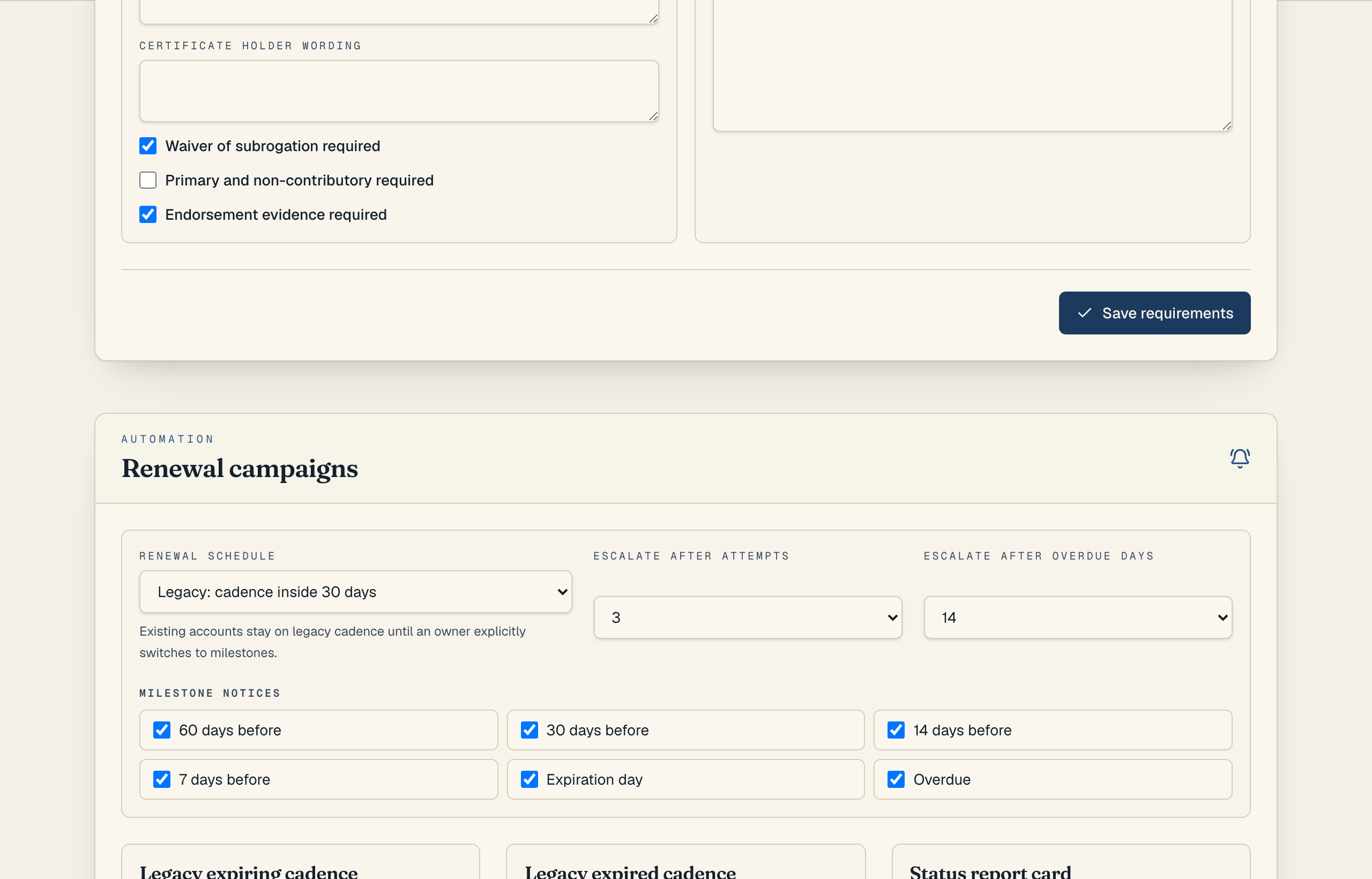
Click Account in the top navigation and find the "Automation" section. The section is titled "Renewal campaigns". Organization owners can change these settings.
Automation stays locked when billing access is paused or the active subcontractor count is over the plan limit.
- 2
2.Choose milestones or legacy cadence
Set "Renewal schedule" to "Milestones: 60, 30, 14, 7, expiration, overdue" for a staged renewal process. Check the notices you want to send at 60, 30, 14, or 7 days before expiration, on expiration day, and when the COI is overdue.
Existing accounts remain on "Legacy: cadence inside 30 days" until an owner switches modes. Legacy mode keeps the current daily or weekly settings in the "Legacy expiring cadence" and "Legacy expired cadence" panels.
- 3
3.Set internal escalation thresholds
Use "Escalate after attempts" to flag a campaign after a set number of successful requests. Use "Escalate after overdue days" to flag a COI that has stayed overdue too long.
The campaign keeps its assigned internal owner, attempt count, last contact, next action, and escalation state.
- 4
4.Work campaigns and corrections from the dashboard
The dashboard is an exception queue. Renewal and correction rows show the blocking reason, expiration, last successful contact, next scheduled action, attempt count, recipient or internal owner, and age.
A rejected COI with a tracked correction shows the first requested fix and delivery state. Use "Resend correction" to issue a fresh scoped link. Delivery failures remain visible and retryable. Successful correction messages follow up after three days and use the account escalation-attempt threshold.
- 5
5.Review replacement responses
When a replacement COI arrives, scheduled renewal and correction messages stop. The rejected source is preserved as superseded, the replacement becomes "Pending review," and COI Compass automatically extracts and rechecks the new document.
A passing recheck resolves the correction. A failed or review result stays attached to the replacement for the next decision. "Approve with exception" closes follow-up while keeping the exception visible in reports and audit history.
- 6
6.Set report cards and email copy
Use "Status report card" to choose a daily, weekly, or monthly summary for teammates at your company. Set the weekly day or monthly day that applies.
Open "Reminder templates" to edit the "Expiring soon" and "Expired" email subjects and messages. Supported variables are "{subcontractor}", "{gc}", "{upload_link}", and "{days_until_expiry}".
COI Compass
Template variables insert the subcontractor, GC, upload link, and days until expiry. - 7
7.Save the automation settings
Click "Save automation settings". COI Compass returns to Account and shows "Automation settings saved."
The reminder job uses the saved schedule on its next run. Failed email attempts remain retryable and do not update the campaign's last successful contact.
Common questions
Will existing reminder behavior change automatically?
No. Existing organizations stay on the legacy daily or weekly cadence. An organization owner must switch the renewal schedule to milestones.
Can the same milestone send twice?
Scheduled stages send at most once per campaign. A team member can send an additional request with "Send now" from the subcontractor record.
What happens after a subcontractor uploads a replacement?
Scheduled sends stop, the old rejected document is preserved as superseded, and the replacement is extracted and checked against the current requirements. A passing result resolves the correction; other results wait for review.
Do reminder links expire?
Yes. Each reminder creates a secure upload link that expires in 14 days. A later scheduled notice or manual resend creates a fresh link.