
For contractors
6 minImport your roster from a spreadsheet
Preview a tracker XLSX, generic spreadsheet, or CSV, then confirm requirements and send the first request batch.
Organization owners complete setup
- 1
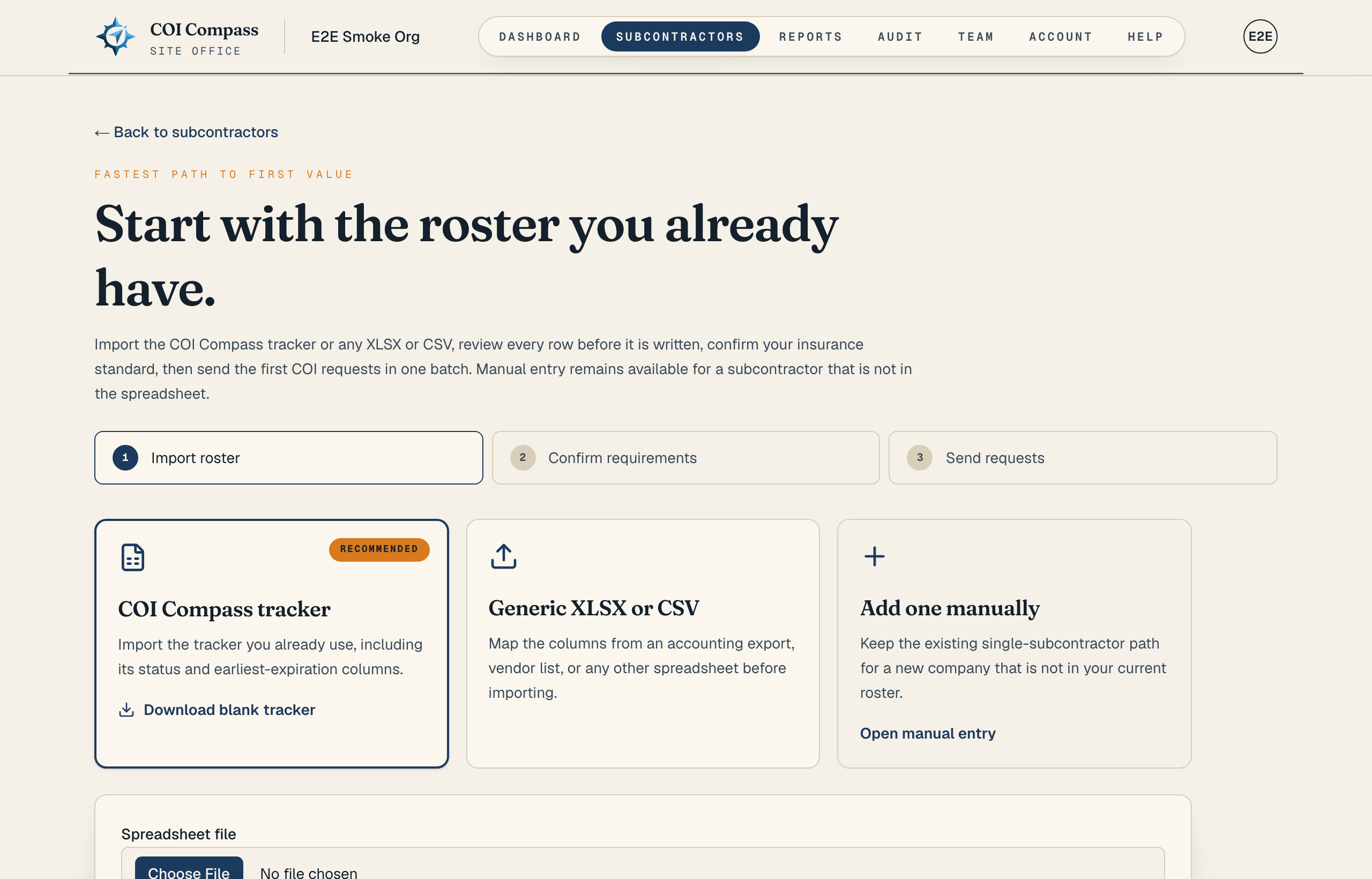
1.Open spreadsheet onboarding
Click "Import spreadsheet" from the empty dashboard or the Subcontractors roster. The page accepts the COI Compass tracker XLSX, a generic XLSX or CSV, and pasted CSV rows. Download the blank tracker from the same page if you need a clean starting file.
- 2
2.Build the preview
Choose a file or expand "Paste CSV text instead." A selected file takes precedence over pasted text. Click "Preview roster." Nothing is saved yet.
For a generic sheet, COI Compass looks for the most likely table and maps familiar headers such as subcontractor company, vendor, trade partner, primary contact, email, cell, and office phone. If a match is uncertain, use "Map columns" to choose the company and contact fields.
- 3
3.Review every row outcome
The preview shows mapped columns, current roster size, rows ready to import, rows that will be skipped, and the final active roster total. The row table marks each source row as Ready, Invalid, Duplicate in file, Duplicate in roster, or Plan limit.
Invalid contacts and duplicates are skipped with a row-level reason. The first duplicate in the spreadsheet takes precedence. A matching active company is not overwritten.
COI Compass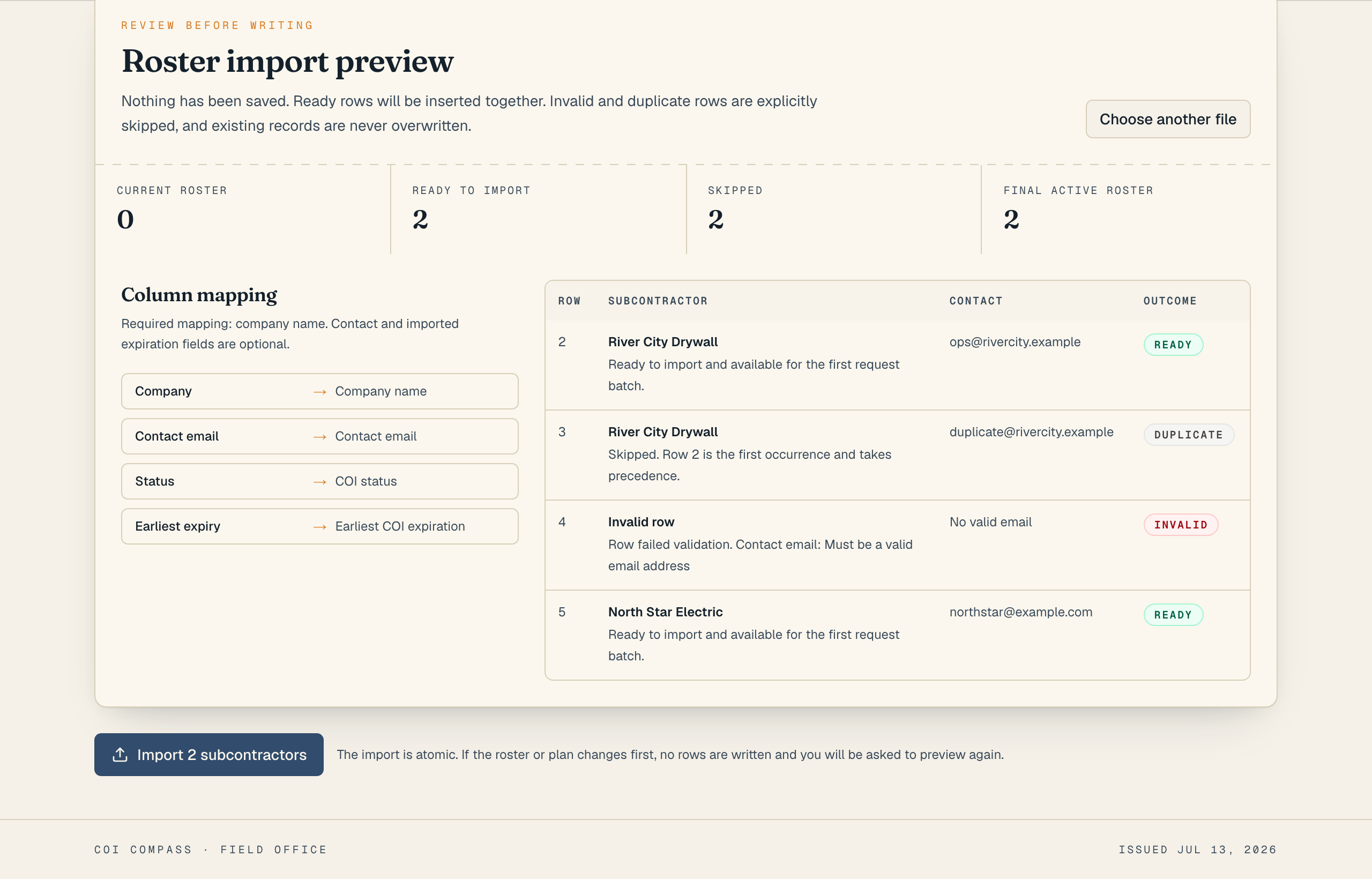
Check the result of every source row before importing the ready rows. - 4
4.Resolve a roster-limit block
If the ready rows would exceed the plan limit, the whole import is blocked. The preview marks the rows over capacity and shows the projected final total. Remove rows from the spreadsheet or change the plan, then build a new preview. COI Compass does not create a partial roster.
- 5
5.Import the reviewed roster
Click the import button after the preview looks right. Ready rows are inserted together; skipped rows remain recorded in the import summary. If the active roster changed after you built the preview, no rows are written and the page asks you to preview again.
- 6
6.Confirm company requirements
Review the organization-wide coverage, limit, wording, and endorsement defaults. Only an organization owner can save this step. These settings govern the COI checks for the request batch and future uploads.
COI Compass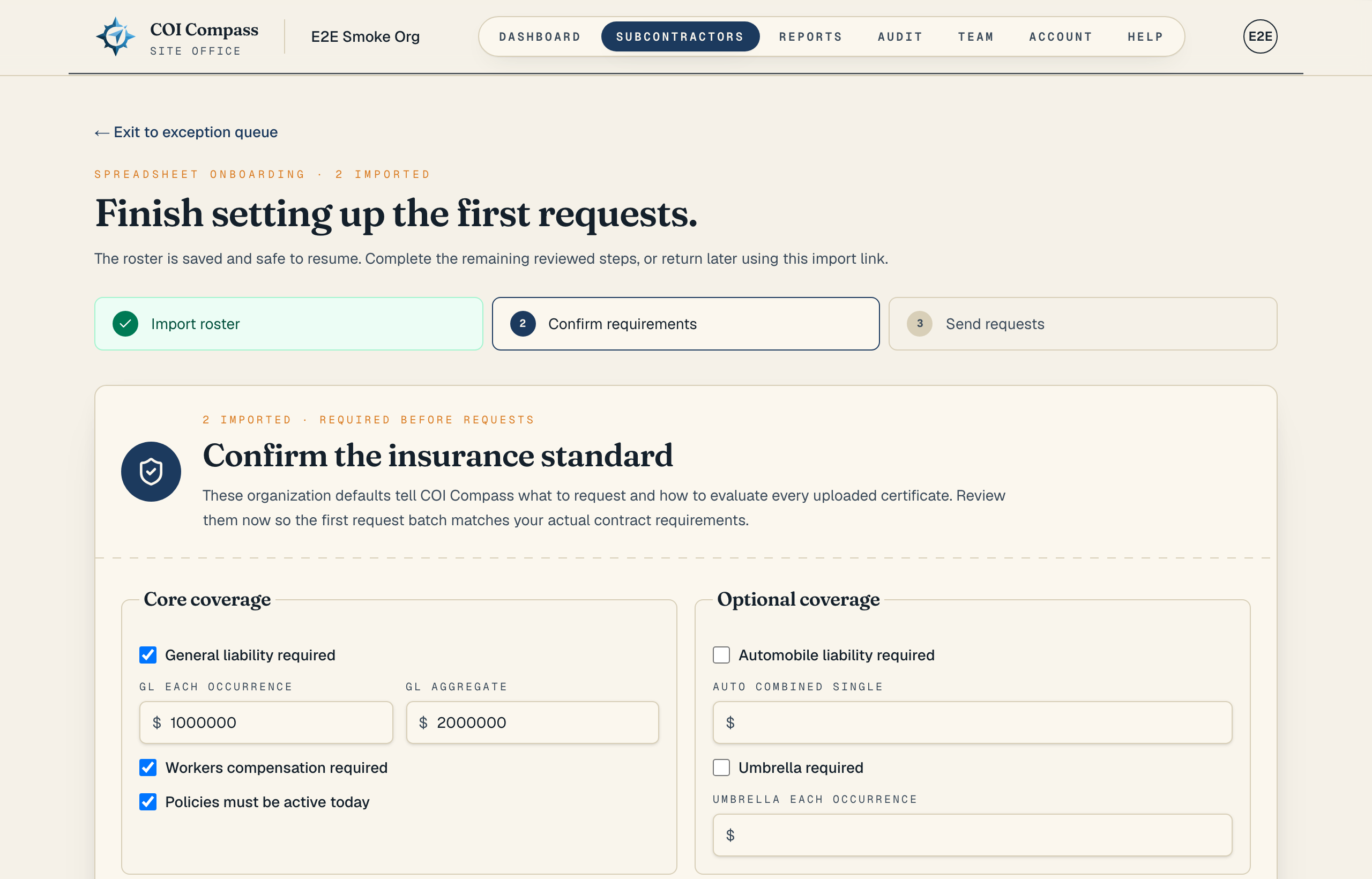
Confirm the rules that will evaluate responses before sending the first request batch. - 7
7.Review one request batch
The final step lists imported companies with valid email addresses. No company is selected by default. Choose each company you want to contact, then click "Review selected requests." Check the recipients and message in the confirmation window before you send.
The email provider validates the batch before sending. If it rejects any message, no messages are sent and the batch can be reviewed and retried. "Finish without sending requests" completes setup without contacting anyone. Both paths open the dashboard exception queue.
COI Compass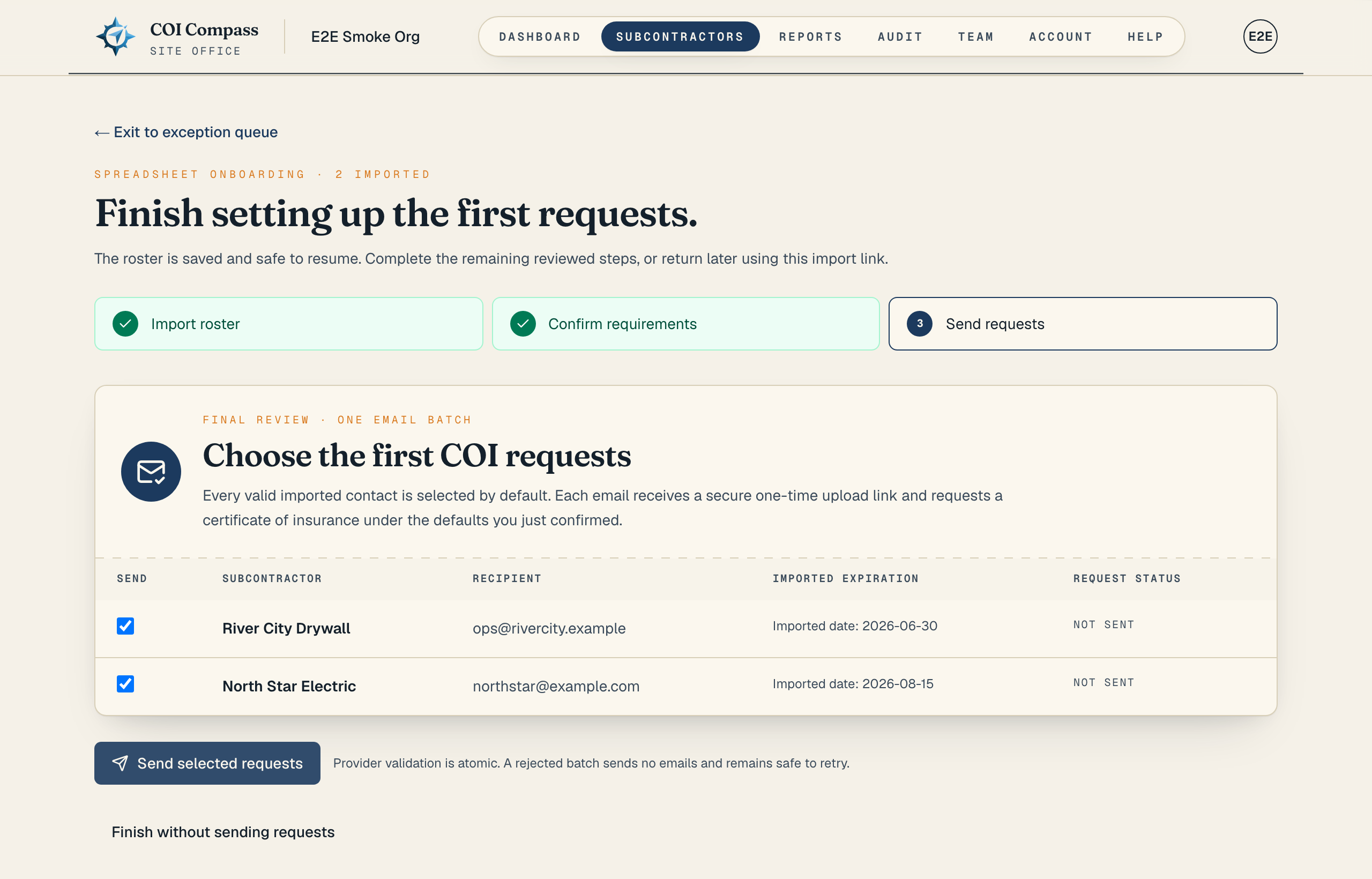
Choose recipients, preview the batch, then confirm the send or finish without sending.
Common questions
Do my spreadsheet headers have to match exactly?
No. COI Compass recognizes common aliases and can find a likely table inside a generic workbook. If it is not confident, it asks you to map the columns before previewing the roster.
What happens to duplicate or invalid rows?
They are skipped and shown in the preview with a reason. The first company occurrence in the file takes precedence, and an active company already in COI Compass is never overwritten.
Can the import create only the rows that fit my plan?
No. A plan-limit overage blocks the whole import before persistence. The preview shows the projected total and which rows exceed capacity so you can make an explicit choice.