
For contractors
3 minChoose a plan and manage billing
Review the trial, compare plan limits, choose a paid plan, and open the Stripe billing portal.
Organization owners only
- 1
1.Open Account
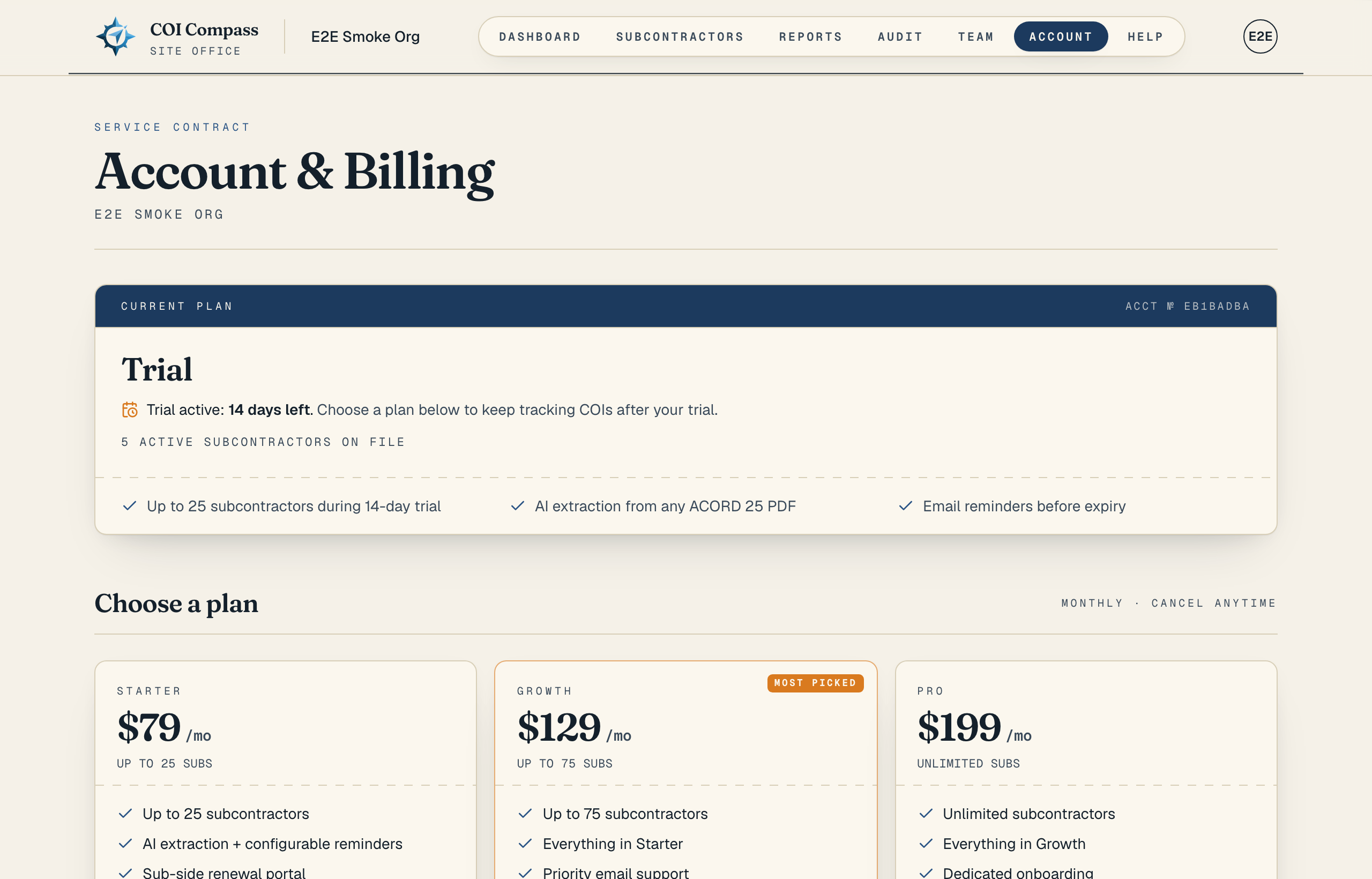
Click "Account" in the top navigation. The page heading is "Account & Billing," and the first section is "Current plan."
During the trial, the plan card shows "Trial active:" and how much time is left. The trial supports up to 25 subcontractors for 14 days.
- 2
2.Compare the plans
Find "Choose a plan." COI Compass shows three monthly plans: "Starter" at $79/mo for "Up to 25 subs," "Growth" at $129/mo for "Up to 75 subs," and "Pro" at $199/mo for "Unlimited subs."
During an active trial, each plan says when the free period ends and what the monthly price will be. The note above the cards shows the date when the chosen plan starts and Stripe charges the saved card. If 48 hours or less remain, the page says billing starts today.
"Growth" is marked "Most picked." The active plan is marked "Active," and its button reads "Current plan."
- 3
3.Choose a plan
Organization owners click "Choose Starter," "Choose Growth," or "Choose Pro" to open Stripe checkout. While the handoff is loading, the button reads "Opening checkout..." Checkout shows "COI Compass by Cairn Labs" near the submit button so you can recognize the charge.
When more than 48 hours remain in the trial, Stripe starts the paid subscription at the existing trial end. COI Compass never adds extra trial time. With 48 hours or less left, or after the trial ends, billing starts when checkout completes.
After checkout succeeds, you return to Account and see "Subscription activated." If checkout is cancelled, you can come back to "Choose a plan" later. Teammates can read the plan cards, but checkout stays disabled for anyone who is not an owner.
If a plan cannot support your current roster, its button reads "Roster too large." - 4
4.Handle roster limits
Starter supports up to 25 active subcontractors. Growth supports up to 75 active subcontractors. Pro allows unlimited subcontractors.
If your roster is larger than a plan allows, archive enough active subcontractors first or choose a bigger plan. When an active plan is over its limit, existing records stay visible, but adding or restoring subcontractors, upload links, COI uploads, and automation pause until the overage is fixed.
- 5
5.Manage billing
After a Stripe customer exists, organization owners see "Manage subscription" on the current plan card. Click it to open the Stripe customer portal for invoices, payment method changes, cancellation, and subscription changes.
Use the "Refunds and cancellation" link on the current plan card when you need the policy details. Teammates see a note that only organization owners can manage billing.
Common questions
What happens if my trial expires?
COI Compass sends you back to Account so an owner can choose a plan. Product pages stay locked until billing access is restored.
Can I pick a smaller plan later?
Yes, but your active roster must fit that plan first. Archive active subcontractors until the roster is within the lower limit, then choose the plan or manage the subscription in Stripe.