
For contractors
5 minSet up your first COI roster
Import the spreadsheet you already use, confirm your insurance rules, and send the first COI requests.
Organization owners
- 1
1.Create your account
Start a free trial from the COI Compass home page. You can enter your company name during sign-up, or leave it blank and use the workspace name COI Compass creates for you. Signing up creates your company workspace automatically, so the moment you finish you land on your own dashboard. The 14-day trial needs no credit card, and you can track up to 25 subcontractors while you evaluate.
- 2
2.Import the roster you already use
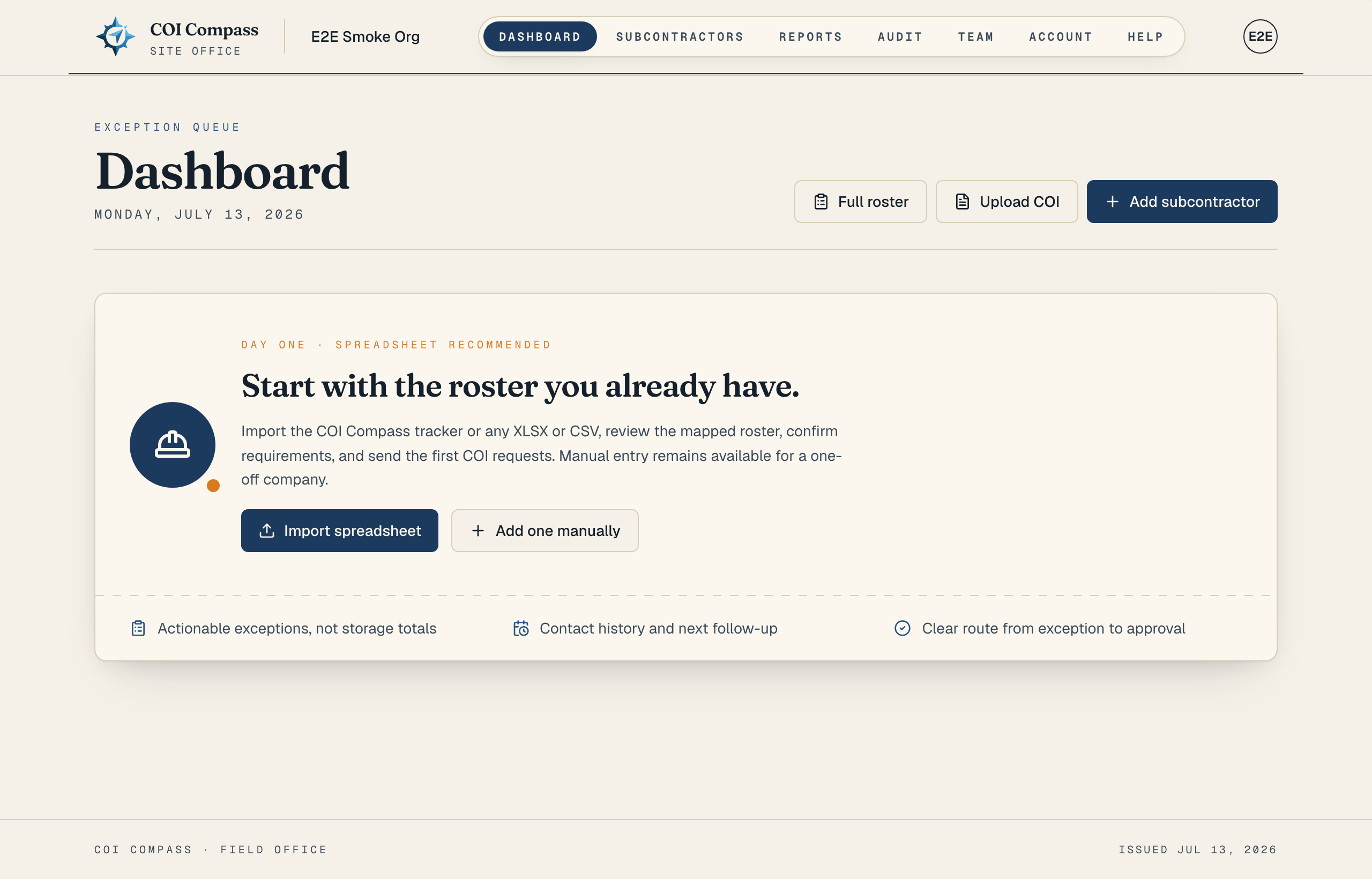
Click "Import spreadsheet" on the empty dashboard. Upload the COI Compass tracker, a generic XLSX, or a CSV. You can also paste CSV rows. Spreadsheet import is the recommended path; "Add subcontractor" remains available for a one-off vendor.
COI Compass builds a preview before saving anything. Check the mapped columns, every source row, duplicate and invalid-contact warnings, the number ready to import, the number skipped, and the final roster total. Existing companies are never overwritten.
COI Compass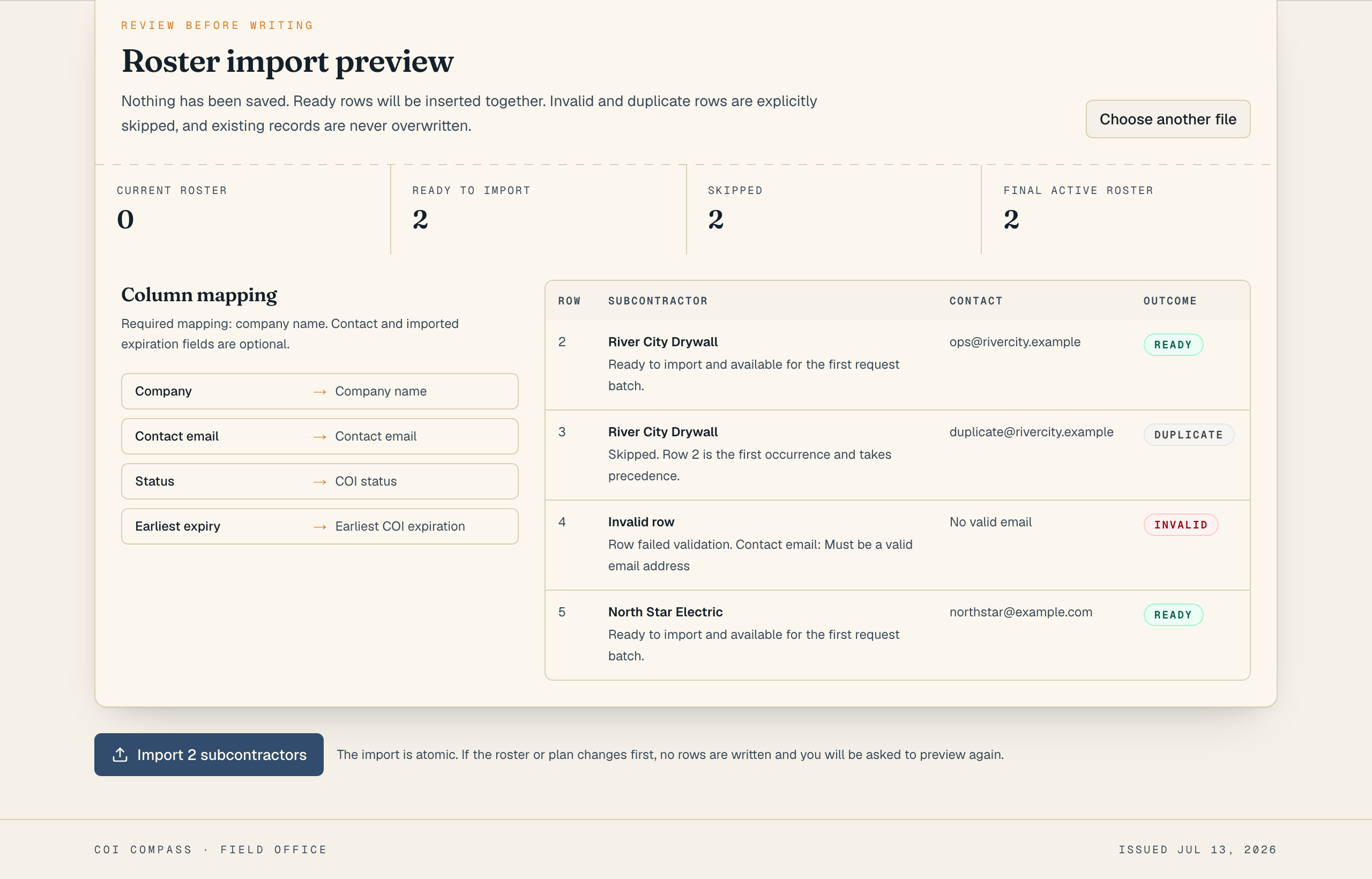
The preview explains what will be imported and skipped before any roster record is written. - 3
3.Confirm requirements and the first requests
Import the reviewed rows, then confirm the insurance requirements that apply across the organization. The request review lists each imported company with an email address. Nothing is selected by default. Choose the companies you want to contact, click "Review selected requests", and check the recipients and message before you confirm.
You can finish without sending. Either choice completes setup and opens the dashboard exception queue.
- 4
4.Work the exception queue
The dashboard opens on the subcontractors who need action rather than the full roster. Expired, rejected, failed, pending-review, unresponsive, missing, and expiring records appear in a fixed urgency order. Each row names the blocking reason, how long it has been open, the last contact, the next scheduled step, the attempt count, and the internal owner.
Use the row actions to send or resend a request, assign an owner, pause or resume follow-up, escalate, or open a COI review. A failed requirement opens the review where an authorized teammate can record an approval exception and its reason.
When no records need action, the dashboard shows an all-clear state. "Full roster" remains available from the page header and the all-clear card.
COI Compass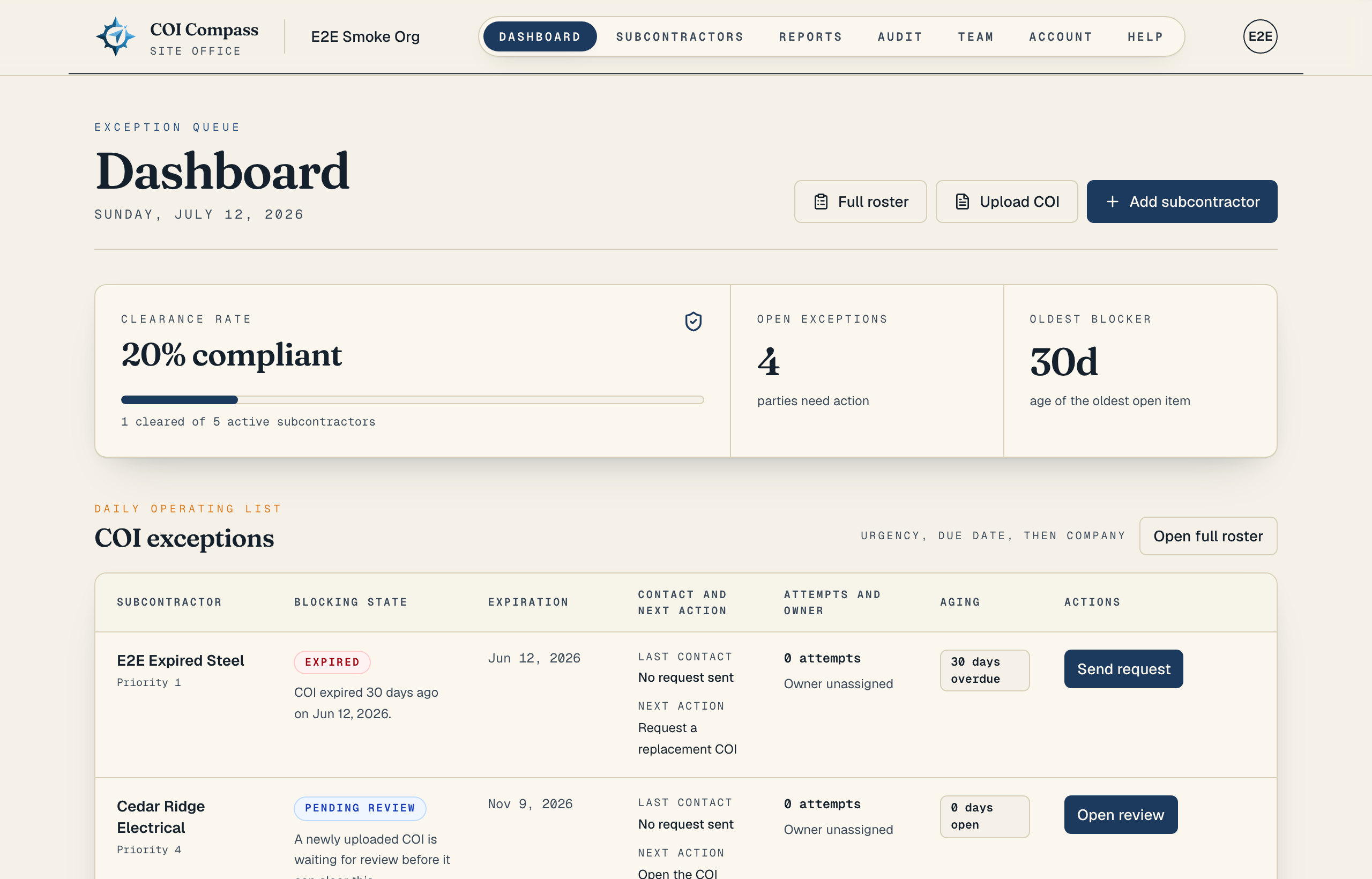
The dashboard starts with the COI exceptions that need a decision or follow-up. The full roster is one click away. - 5
5.Use the top navigation
The bar across the top moves you between Dashboard, Subcontractors, Reports, Audit, Account, and Help. Organization owners also see Team. The compass logo returns to the dashboard.
Team, automation settings, and insurance requirements are owner-only. Members can view the dashboard, subcontractors, and reports.
Common questions
Do I need a credit card to start?
No. Every plan begins with a 14-day free trial and no card is required to sign up. You choose a plan from the Account page when you are ready to keep tracking past the trial.
Can my whole team use one account?
Yes. Your account is a single shared workspace. Invite teammates from the Team page and they all see the same roster, certificates, and reports.