
For contractors
2 minArchive or restore a subcontractor
Hide a subcontractor from the active roster without deleting their COI, credential, or audit history.
Anyone on the team
- 1
1.Open the archive dialog
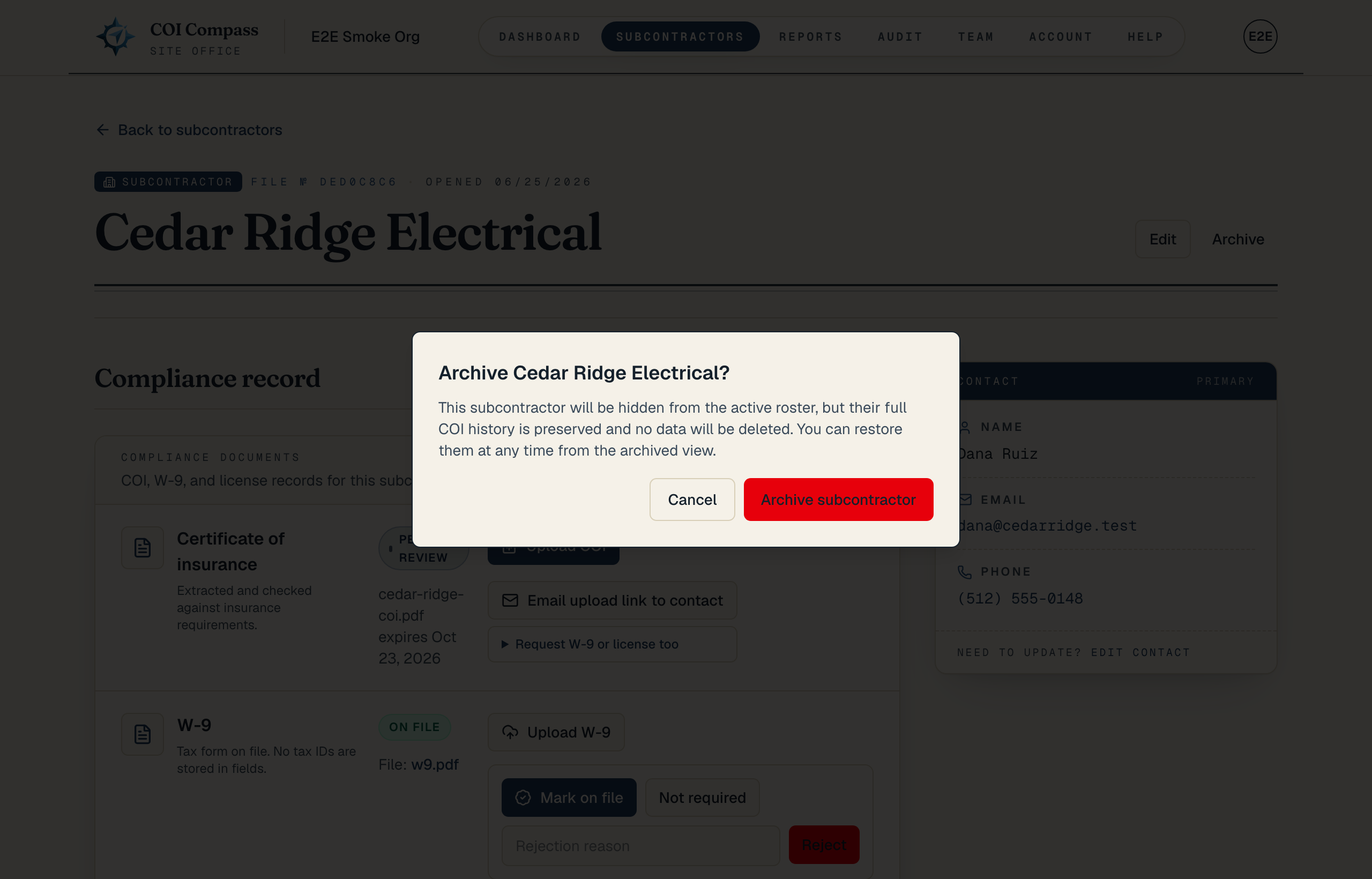
Open the subcontractor detail page and click "Archive". The dialog title is "Archive {companyName}?"
The dialog says, "This subcontractor will be hidden from the active roster, but their full COI history is preserved and no data will be deleted. You can restore them at any time from the archived view."
- 2
2.Confirm the archive
Click "Archive subcontractor" to archive the company, or "Cancel" to leave it active.
After archiving, the subcontractor is hidden from the active roster. COI history, credential history, contact details, and audit history remain saved.
- 3
3.Find archived subcontractors
From the active roster, click "View archived →" to open the archived view. The page is labeled "Archived roster" and titled "Archived subcontractors".
Use the archived view when you need to look up a past subcontractor or restore one for a new job.
COI Compass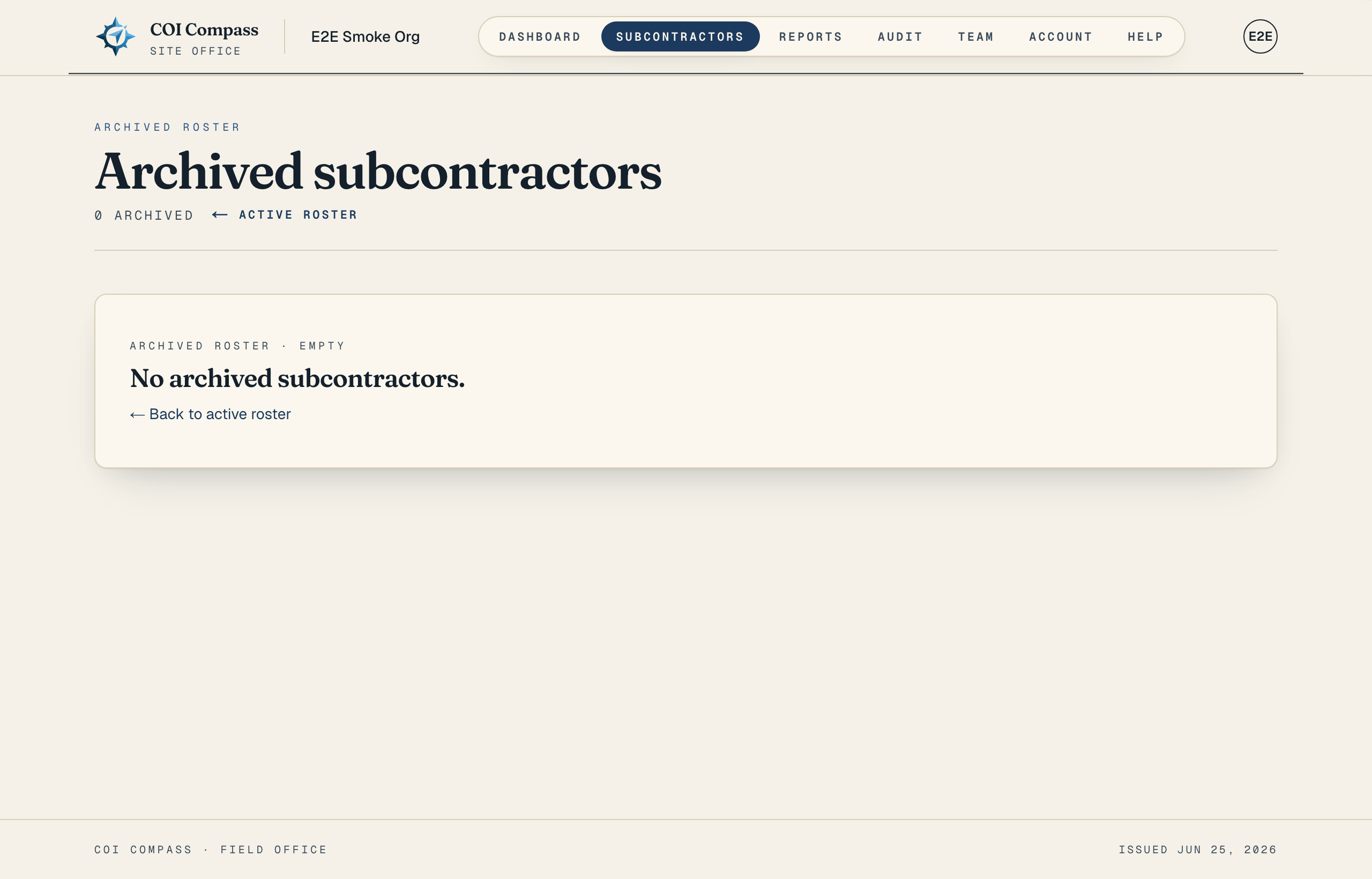
Archived subcontractors stay available in a separate roster view. - 4
4.Restore the subcontractor
Open the archived subcontractor and click "Restore". The dialog title is "Restore {companyName}?" and says, "This subcontractor will be moved back to the active roster and will appear in compliance tracking again."
Click "Restore subcontractor" to move the company back to the active roster.
Restore can be blocked if your current plan or trial does not have room for another active subcontractor.
Common questions
Does archiving delete uploaded documents?
No. The archive dialog confirms that full COI history is preserved and no data is deleted.
Why can't I restore an archived subcontractor?
Restoring counts as adding one active subcontractor. If your active roster is at the plan limit, COI Compass blocks the restore until you archive another company or choose a plan that supports the larger roster.