
For contractors
2 minRead and export the audit trail
Use the audit trail to see who changed records, what happened, and when the event was recorded.
Anyone on the team
- 1
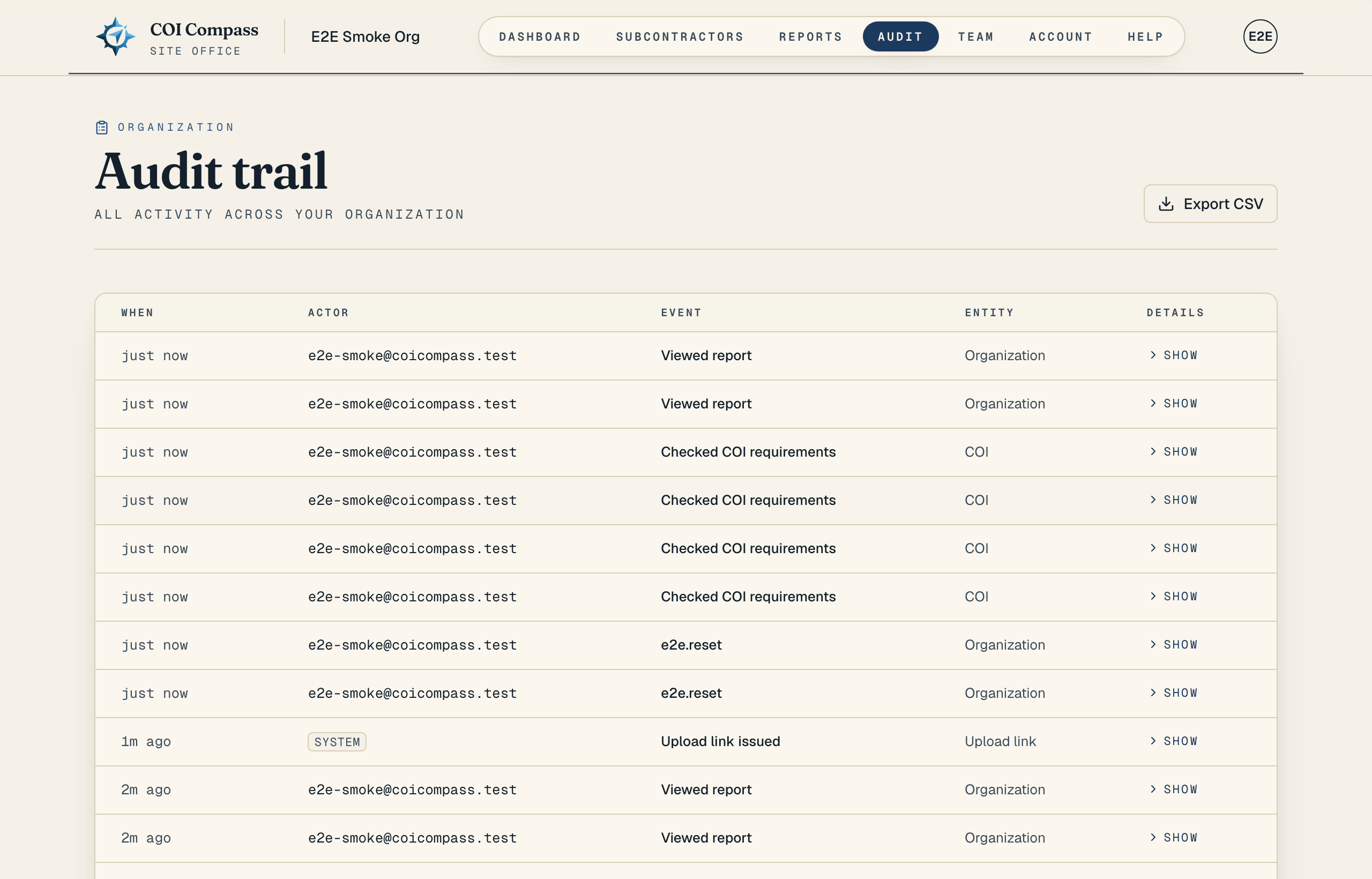
1.Open Audit
Click "Audit" in the top navigation. The page heading is "Audit trail," with the subtitle "All activity across your organization."
The audit trail records who did what and when, including uploads, approvals, rejections, requirement changes, report exports, team access changes, and system events.
- 2
2.Read the columns
The audit table uses five columns: "When," "Actor," "Event," "Entity," and "Details."
"When" shows a relative time, "Actor" shows the user or "System," "Event" shows the activity label, and "Entity" links to the related COI or subcontractor when a direct page is available.
- 3
3.Expand row details
If an event has metadata, the "Details" column shows "Show." Click it to expand the row and read the saved details. Click "Hide" to collapse it again.
Details are shown as structured data, and stored file links are redacted before display.
Rows without metadata show a dash in "Details." - 4
4.Load older events
The audit page loads recent events first. When more history is available, click "Load older events" at the bottom of the table.
- 5
5.Export the audit trail
Click "Export CSV" at the top of the page to download the audit trail for the organization.
The export route is owner-only. If the download is blocked, ask an organization owner to export the CSV.
Common questions
What does "System" mean in the Actor column?
"System" means COI Compass recorded an automated event, such as an upload through a subcontractor portal or another background action.
Can I open the record from the audit trail?
Often, yes. If the "Entity" is a COI or subcontractor, COI Compass links it to the related page. Some organization-level events do not have a detail page.